
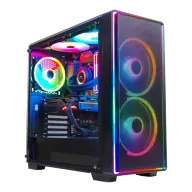
Guide
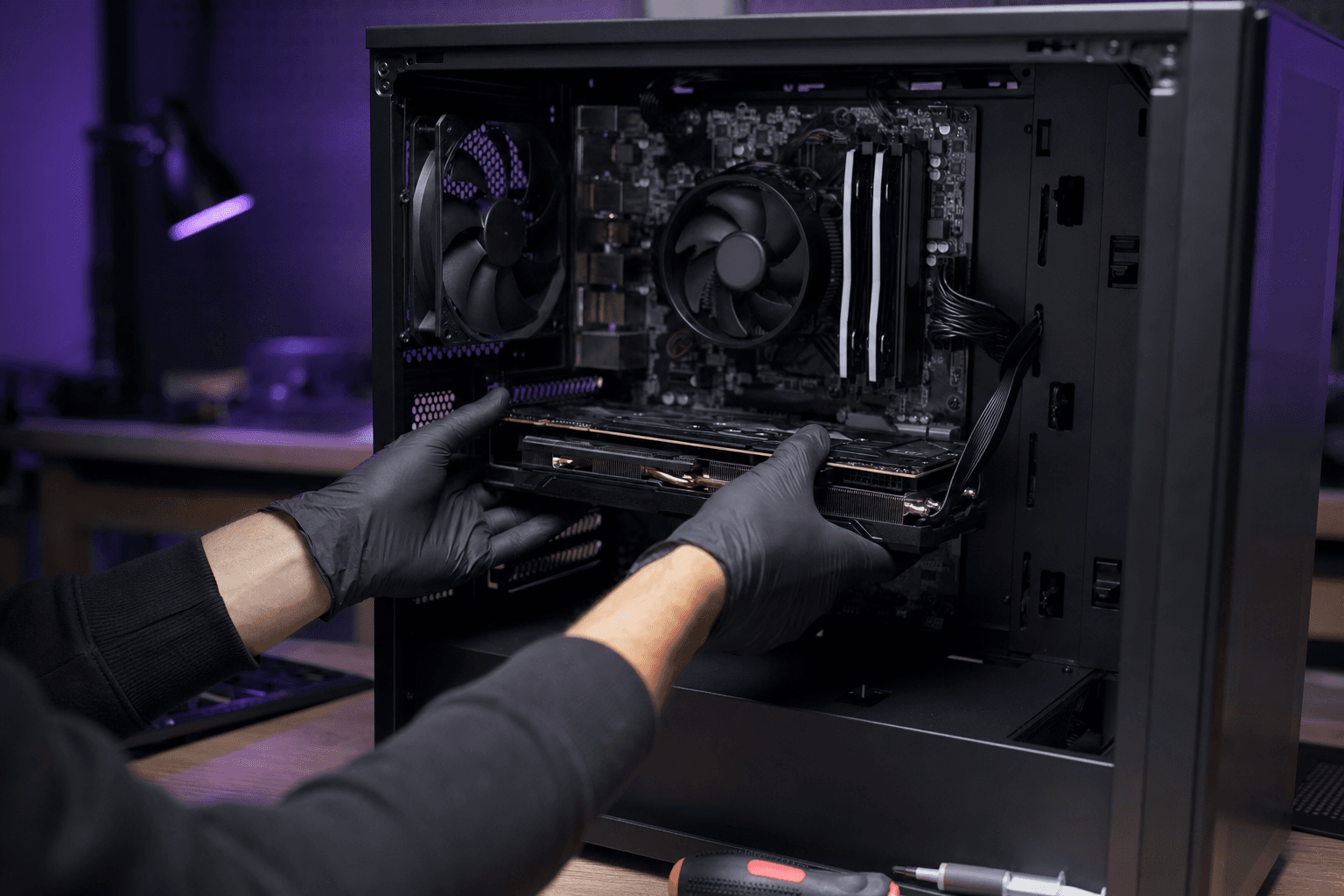
Upgrade a gaming PC in 2026: GPU first, then RAM
Do not replace the whole tower yet. A targeted gaming PC upgrade (GPU first, then RAM or an NVMe SSD) often buys smooth FPS for $80 to $350. CPU or motherboard come later, and only if the socket still has a cheap drop-in chip. Typical 2026 order: GPU if the card is 4–5 years old or you moved to 1440p; RAM if you still have 8 GB or a single stick; NVMe if games sit on an HDD; CPU if GPU usage stays under ~70% in open worlds. Match the next part to your Steam library in the PC4Games comparator. Sometimes a recent $800 prebuilt beats stacking parts on a dead platform.
Find your ideal PC on PC4Games
We match your games and budget with prebuilt Amazon PCs to surface the best-fitting configs.
How it works
Add your games
Your Steam library or a manual pick — you're in control.
Set your budget
From €400 to €2,000, you decide how much to spend.
Compare PCs
Score, specs and Amazon link — everything to choose with confidence.
How much does a 2026 gaming PC upgrade cost?
For gaming, the parts that matter most are the GPU, RAM, and CPU. The motherboard only matters if you change socket or RAM type (DDR4 → DDR5).
$80–150: 500 GB NVMe (~$40–60) plus a 16 GB dual-channel kit (~$35–50). Best if the PC feels slow but the GPU still holds 1080p.
$150–350: used GTX 1660 Super / RX 6600, or a Ryzen 5 5600 on the same B450 (updated BIOS). Sweet spot for a 2018–2020 machine.
$350–600: RTX 4060 / RTX 5060 / RX 7700 XT plus a 650 W PSU if needed. Compare that stack with an $800 gaming PC prebuilt before you buy.
If upgrades exceed ~60% of a new PC sized to your games, stop. Do not sink money into a DDR4 board if the platform dies within a year.
| Budget | Typical parts | Best for | Expected gain |
|---|---|---|---|
| $80–150 | SSD + 16 GB RAM | Slow loads, 8 GB RAM | Feels like a new PC in daily use |
| $150–350 | Used RX 6600 or Ryzen 5 5600 | 1080p medium-high | +30–80% FPS depending on bottleneck |
| $350–600 | RTX 4060/5060 + PSU | 1440p entry, AAA 1080p | Major GPU jump; check CPU/PSU |
| $600+ | GPU + CPU + board | Platform refresh | Compare vs new $1,000 build |
DIY upgrade vs local PC shop: which makes sense?
Searching «upgrade gaming pc near me» usually means a local repair shop or retailer install. That makes sense if you will not touch hardware, need urgent diagnosis, or want warranty on the install itself.
In 2026, doing it yourself is often cheaper: swapping RAM or a GPU takes 15–45 minutes with this guide. You pay for the part only — no labor markup. Big-box stores (Best Buy, Micro Center) are great for buying parts or same-day GPU installs, not always for advising on a specific old rig.
Our approach: find the bottleneck with the comparator, buy online or locally, and install the easy parts (RAM, SSD, GPU). Reserve a shop for CPU/motherboard work if you are uncomfortable. On a very tight budget, read cheap gaming PC before spending on piecemeal upgrades.
What to upgrade first on a 2–3 year old PC?
Common setup: Ryzen 5 3600X, 32 GB DDR4, RTX 3060 12 GB, B450 board, 480 GB SSD + 1 TB HDD, 600 W PSU. RAM is already fine; the GPU is still OK at 1080p. The CPU often becomes the bottleneck if you plan a much stronger GPU (RX 6700 XT, RX 7800 XT, RTX 4070, RTX 5070).
On an updated B450 BIOS you can drop in Ryzen 5 5600, 5600X, 5700X, or 5800X without a new motherboard — a cost-effective CPU upgrade. For an RTX 4070/5070-class GPU later, confirm your 600 W PSU has the right PCIe connectors; otherwise budget a 650–750 W 80+ unit.
A 1 TB NVMe SSD is still a cheap quality-of-life win for load times. The PC4Games comparator matches your games, resolution, and budget to see if partial upgrades are enough or a recent prebuilt on Amazon is smarter.
| Problem | Upgrade first | Also check |
|---|---|---|
| Low FPS in all games | GPU | PSU wattage, case length |
| Stutter in open worlds only | CPU (if GPU <70% usage) | RAM speed / dual-channel |
| Long load times | NVMe SSD | Move games off HDD |
| Browser + game lag | RAM 16→32 GB | Enable XMP/EXPO in BIOS |
| Planning RTX 4070+ on AM4 | PSU + CPU (5600/5700X) | BIOS version on B450 |
Preparation: static safety and workspace
Assembly is easier than it looks with proper prep. Golden rule: static electricity. Avoid synthetic clothes that charge easily; touch grounded metal (radiator, case) before handling parts.
Switch the PSU to OFF, unplug all cables, lay the case on its side on a wide desk. Remove the side panel — often thumb screws; a medium magnetic Phillips screwdriver still helps.
Tools by part: CPU — isopropyl alcohol + wipes (or lightly damp water) to clean thermal paste, plus fresh paste if reusing a cooler. GPU and motherboard — same screwdriver. RAM — mostly care and patience.
Installing or replacing RAM
Find the DIMM slots (usually right of the CPU socket). To add a stick: open both clips on an empty slot, align the notch on the stick with the slot key, press firmly until both sides click.
To remove: press both clips outward. For dual-channel, check the manual (often A2 + B2). After install, enable the XMP/EXPO profile in BIOS for 3200 MHz or higher if supported.
If only one slot is free and you have 8 GB, replacing with a new 2×8 GB kit is usually better than adding a mismatched stick. See RAM for gaming for 16 vs 32 GB in 2026.
Replacing the graphics card (GPU)
Unplug PCIe power cables, remove the case retention screw, press the PCIe x16 latch, slide the card out. Install the new card: seat until it clicks, screw in, reconnect PSU cables (8-pin or 12VHPWR as required).
Check case max GPU length and recommended PSU wattage before buying. Before a big GPU jump, test CPU/GPU balance with the PC Builds Bottleneck Calculator.
Common trap on Amazon: listings with flashy «i7 gaming» titles and weak GPUs (GTX 1650, RX 5500). When upgrading, target RX 6600 / RTX 4060 minimum for 1080p AAA in 2026 — see RTX 4060 vs RTX 3060.
Replacing the CPU
Unplug the cooler fan cable (note the header). Remove the cooler screws diagonally, lift the cooler. Raise the socket lever, open the frame, remove the old CPU by the edges only.
Clean paste on the CPU and cooler base (isopropyl preferred). Install the new CPU aligning the corner triangle with the socket, close the frame and lever (slight resistance at the end is normal; heavy force means misalignment).
Apply a small pea of paste (not too much), remount the cooler, tighten in a cross pattern, reconnect the fan cable. Monitor idle and gaming temps after first boot. On B450/B550, update BIOS before installing Ryzen 5000 series CPUs.
Replacing the motherboard
The longest job: unplug all motherboard cables, remove GPU, CPU (with cooler), and RAM as above. Unscrew the board (edge and center screws), remove the rear I/O plate from outside.
Reposition standoffs to match the new board holes. You can pre-install CPU, cooler, and RAM on the board outside the case, or in the chassis — press firmly but never excessively.
Fit the new I/O shield, seat the board, screw down, remount GPU, reconnect PSU, storage, fans, and front panel. The board manual labels every header. DDR4 → DDR5 jumps always mean new RAM — budget accordingly.
Finish up and first boot
Close the panel, reconnect power and peripherals. If no display or beep codes, reseat RAM, GPU power, 24-pin and CPU 8-pin cables.
Enter BIOS: confirm RAM detected, enable XMP, update BIOS if moving to a newer CPU on B450/B550. In Windows, install chipset and GPU drivers.
PC building is within reach for most gamers today — connectors are designed to simplify assembly. Manufacturer manuals and the PC4Games comparator (games + budget) complement this hands-on guide.
Frequently asked questions
Which components are easiest to replace?
RAM, storage (SSD/HDD), and the graphics card are the most approachable—few tools, no full teardown. Dual-channel RAM or an NVMe SSD often feels like a new PC. CPU and motherboard need more care (socket, BIOS, thermal paste).
Should I change the power supply too?
Yes when moving to a much stronger GPU (e.g. RTX 4070, RX 7800 XT). Check wattage, 80+ rating, and PCIe power connectors (8-pin, 12VHPWR) before buying. An RTX 3060 may be fine on a decent 600 W unit; high-end cards are not.
How do I avoid compatibility issues?
Match CPU socket, motherboard chipset (updated BIOS for newer CPUs on B450), RAM type (DDR4/DDR5), case GPU clearance, and board form factor. Upgrade kits or the PC4Games comparator reduce mismatched parts.
Do I need a new motherboard with a new CPU?
Not always. On AM4 (B450/B550), a Ryzen 5 3600 can step up to 5600/5700X/5800X with a current BIOS. Moving DDR4 → DDR5 or jumping Intel generations usually means a new board and often new RAM.
What should I upgrade first on Ryzen 5 3600X + RTX 3060?
If the 3060 is enough at 1080p: CPU to Ryzen 5 5600/5700X on the same B450, then a 1 TB SSD if needed. For 1440p or higher FPS: GPU first, but check CPU bottleneck and PSU. 32 GB dual-channel RAM is already solid.
Is PC building realistic for beginners?
Yes for RAM and GPU with this guide. CPU and motherboard need method (static, no socket force). Manufacturer manuals and step videos help; take your time on power cables.
Sources & methodology
How we wrote this guide
This PC4Games practical guide follows manufacturer assembly standards, community hardware feedback, and comparator compatibility rules—it does not replace your motherboard manual.
- GPU/CPU/RAM priorities: aligned with Steam recommended specs and the Steam Hardware & Software Survey for the PC player base.
- Ryzen 3600X + B450 example: AMD-documented AM4 upgrade paths (BIOS, supported CPUs).
- ESD safety and thermal paste: best practices from Intel/AMD and cooler vendors.
- Editorial update: 2 June 2026 — verify BIOS, PSU connectors, and prices before purchase.

Similar articles
 Buying tips14 min read
GTA 6 news September 2026: Extended Look, Twitch, and pricing
GTA 6 Sept 2026: Extended Look on Netflix (Aug 27), Twitch outage, YouTube gameplay, official trailer, $79.99 pricing, console launch November 19.
14 min readRead article Buying tips16 min read
How to choose a gaming monitor in 2026: 1080p vs 1440p
How to choose a gaming monitor in 2026: 1080p 144 Hz from $180 for esports, or 1440p from $280 for AAA. Match Hz to your GPU before you buy.
16 min readRead article Buying tips28 min read
Best free PC games in 2026 (Steam, Epic, Riot)
Best free PC games 2026: 28 official F2P (Fortnite, CS2, Valorant…). US 1080p budgets $450–875, store links and a free PC picker. September 2026.
28 min readRead article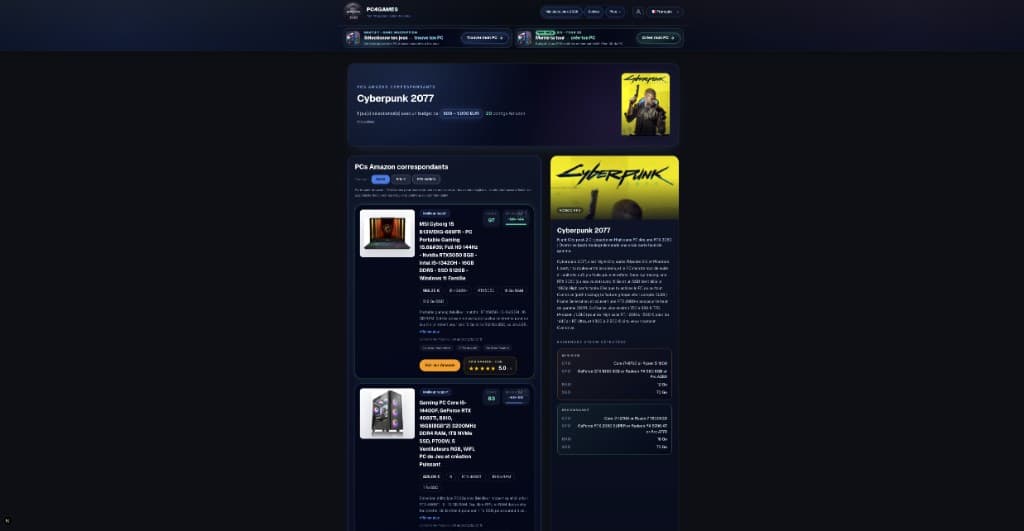 Buying tips15 min read
How to choose a gaming PC in 2026 (US): method by player profile
Best gaming PC 2026: how to choose by FPS, 1440p, streaming, CPU/GPU/RAM and budget. US method with Amazon, Newegg and PC4Games.
15 min readRead article Buying tips12 min read
Is Pokémon Champions on PC in 2026?
Is Pokémon Champions on PC? No Steam or Windows client in September 2026. Switch, Switch 2, iOS, Android only. Emulator risks and safe download sources.
12 min readRead article Buying tips13 min read
Amazon gaming PC: how to choose without getting trapped (2026)
Amazon gaming PC 2026: budget configs, marketplace pitfalls, prebuilt checklist and PC4Games Steam comparator.
13 min readRead article
PC4Games
Take action with the comparator: pick your games, budget, then compare PCs.

Comments
Loading…
Sign in or create an account to comment on this article.